Your PC,beautifully simple.
Jordy OS is a fast, modern desktop operating system with a familiar design, a real web browser, everyday apps and games. Try it in a virtual machine, run it from a USB stick, or install it on your PC.
Free · For 64-bit PCs · Works in VMware
Everything you need, right out of the box
No setup, no accounts, no ads. Start it up and get going.
A desktop that feels like home
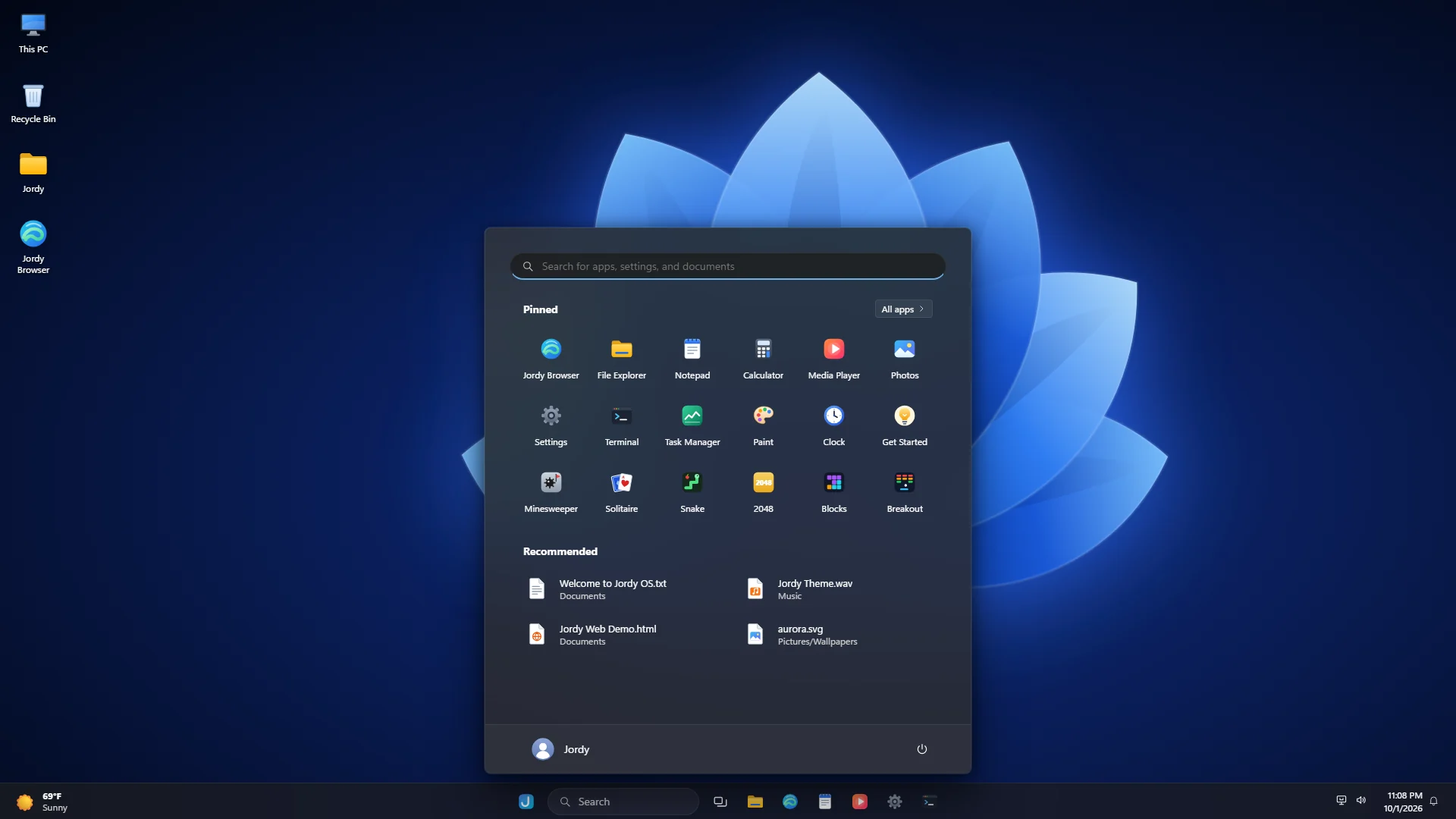
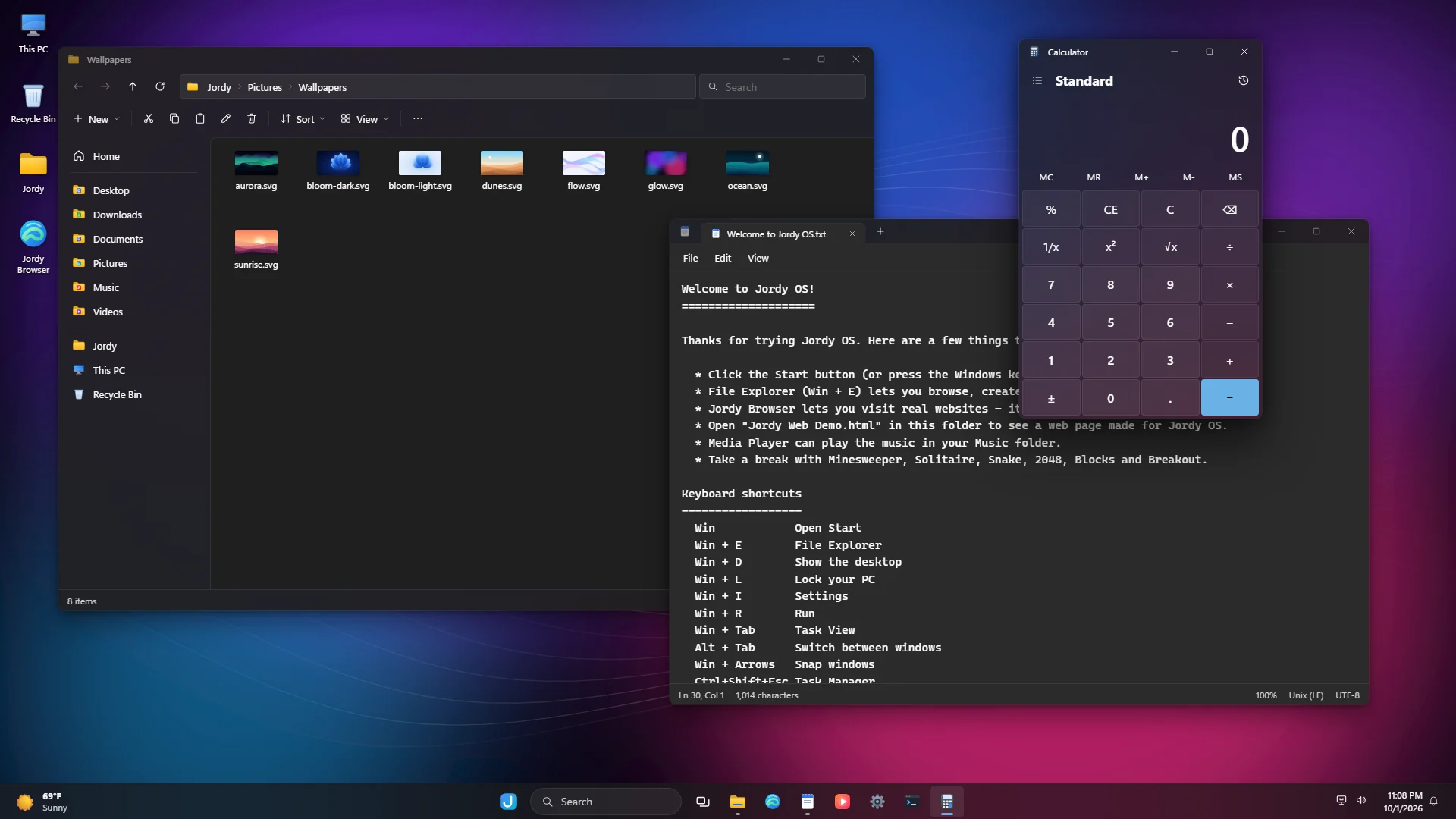
Start menu with search, a centered taskbar, Snap layouts, Task View, Alt+Tab, notifications and Quick Settings. Rounded corners and smooth animations throughout.
Real web browsing
Jordy Browser shows real websites with full HTML, CSS and JavaScript, with tabs, favorites, history and your choice of search engine.
The apps you use every day
File Explorer, Notepad, Calculator, Media Player, Photos, Paint, Clock, Terminal, Task Manager and Settings. Plus six games, and Print Screen copies a screenshot to the clipboard.
Thousands of Linux apps
Get real Linux apps and games from Jordy Store — Firefox, LibreOffice, GIMP, VLC, Discord, Spotify, VS Code, SuperTuxKart and thousands more from Flathub. They open in normal Jordy OS windows.
Virtual machines built in
Run Windows or Linux in a window, save the running machine to a snapshot file, compress virtual disks to save space, and give VMs Game Mode's full speed.
Boot-Easy USB maker
Put Jordy OS — or any ISO or disk image — on a USB drive in a few clicks. Partitions are sized automatically, internal disks are protected and every byte is checked.
Works on real hardware
Wi-Fi, Ethernet, sound, laptop batteries and screen brightness, with drivers for Intel, AMD and NVIDIA graphics. Boot from USB or install it with one click.
Make it yours
Light and dark mode, accent colors, eight original wallpapers, a password-protected lock screen and display scaling.
Take the tour
Real screenshots of Jordy OS.
Download Jordy OS
Version 1.0 · 2026 · Free
ISO image
Start Jordy OS from a USB stick or DVD, or use it in VMware, VirtualBox or Hyper-V. Runs in live mode, and you can install it from there.
- Live mode: nothing on your PC is changed
- Includes the installer
USB disk image
Write it to a USB stick (8 GB or larger) to carry Jordy OS around. Your files and settings are saved on the stick, which grows to use the whole drive.
- Write with balenaEtcher or Rufus
- Files are kept between restarts
VMware package
A ready-to-run virtual machine. Unzip it, double-click Jordy OS.vmx and press Power on.
- VMware Workstation 16 or later
- Files are kept inside the VM
SHA-256 checksums
Checksums are listed in downloads/SHA256SUMS.txt
Getting started
Pick how you want to run Jordy OS.
- Easiest: download the VMware package, unzip it and double-click
Jordy OS.vmx. Click Power on this virtual machine. - Or use the ISO: in VMware choose Create a New Virtual Machine and pick
JordyOS-1.0.isoas the installer disc image. - Choose Linux → Other Linux 6.x kernel 64-bit. Give it 2 or more processors, 4 GB of memory and a 16 GB disk.
- Turn on View → Autosize → Autofit Guest so the desktop fits the window.
- Download the ISO (live mode) or the USB disk image (saves your files).
- Open balenaEtcher or Rufus, choose the file and your USB stick, and click Flash. Everything on the stick is erased.
- Restart your PC and open the boot menu (usually F12, F11, F9 or Esc while it starts). Pick the USB stick.
- If your PC says the device can't start, turn off Secure Boot in its UEFI/BIOS settings and try again.
- Start Jordy OS from a USB stick (see the previous tab).
- Double-click Install Jordy OS on the desktop, or find it in Start.
- Choose the disk to install to and confirm. That disk is completely erased, so back up your files first.
- When it's done, click Restart now and remove the USB stick. Jordy OS starts from the disk.
System requirements
Questions
Is Jordy OS free?
Yes. Jordy OS is free to download and use.
Is this Windows?
No. Jordy OS is its own operating system with a desktop designed to feel familiar if you've used Windows 11. Under the hood it uses the Linux kernel for its hardware drivers and networking.
Can I run Windows programs?
No. Jordy OS comes with its own apps and a full web browser, so anything that runs on the web works.
Will installing Jordy OS erase my computer?
Only if you run Install Jordy OS and pick your computer's disk. Running it in a virtual machine or from a USB stick doesn't change your PC at all.
Why won't my PC start from the USB stick?
Most often Secure Boot is turned on. Open your PC's UEFI/BIOS settings (usually F2 or Del at startup), turn Secure Boot off, and choose the USB stick in the boot menu.
Does Wi-Fi work?
Yes, on most laptops with Intel, Realtek, Qualcomm Atheros, MediaTek or Broadcom Wi-Fi. Click the network icon in the taskbar to pick a network.
Are my files saved?
When Jordy OS is installed, or running from the USB disk image or VMware package, yes. When you start it from the ISO, it runs in live mode and changes are lost when you turn it off.